Day 6 provided more insight into Windows and the different evidence that can be found in the Microsoft Windows. LNK File, Jump List Microsoft Office and Microsoft Teams were covered but the artifact source that I will be writing on is the Sticky Notes.
Sticky Notes
Starting with Windows XP in 2002, Microsoft introduced a desktop application called Sticky Notes. A simple note taking system that allows for text, tables, lists and photos. Users may use it to keep track of any number of things including usernames/passwords, pictures, bank account information and other data that may be helpful in an investigation.

Sticky Notes exist as files on the system and can be exported for further analysis. Depending on the version on Windows that is being examining will determine where these files are located and the file type.
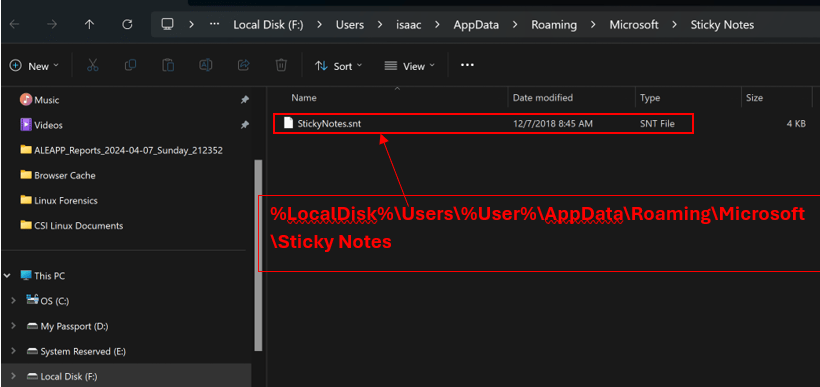
Before Windows 10 build 1607, Sticky Notes can be found at “%LocalDisk%\Users\%User%\AppData\Roaming\Microsoft\Sticky Notes”. The .SNT format is a binary file that used the OLE compound file format. One way to examine this file is loading it into a hex editor.
For Windows 10 build 1607 and later, Sticky Notes can be found at “%LocalDisk%\Users\%User%\AppData\Local\Packages\Microsoft.MicrosoftStickyNotes_8wekyb3d8bbwe\LocalState”. The information is now store in a SQLite3 database named plum.sqlite.

Below is a screenshot of a plum.sqlite file opened in DB Browser. The contents and timestamps related to the user’s Sticky Notes can be found in the “Note” table. When looking at the timestamps of the plum.sqlite file, it is important to know that the time is Microsoft Ticks.

Sticky Notes can provide an examiner with access codes, passwords, and various other information.
 Yeah, I have a question...
One response to “Day 6 Windows Forensic Examinations: Sticky Notes”
[…] Day 6 Windows Forensic Examinations: Sticky Notes […]
LikeLike